
- English
- Bahasa
- 简体中文
- 繁体中文
- Mongolian
- Português
- Spanish
- Thai
- Vietnamese
- عربي
- English
- Bahasa
- 简体中文
- 繁体中文
- Mongolian
- Português
- Spanish
- Thai
- Vietnamese
- عربي
Help and support
A. Popular FAQs
Visit partners.pepperstone.com and enter your Pepperstone credentials. If you are already logged in to pepperstone.com or the Pepperstone Client Area (SCA), single sign-on (SSO) will take you directly into the portal without a second login prompt.
New users can sign up from the login page using an email address and password, or via a social profile (e.g. Google).
After logging in, users located in any of the eligible countries will be guided through a simplified onboarding experience. This streamlined process consists of three quick steps to gain instant access to the Partners Portal:
1. Select your Partner Program
2. Complete the Country Selection screen
3. Submit the IB Registration form
If you are not located in one of the eligible countries, you will be directed to the full onboarding workflow. The portal will guide you through a short triage questionnaire, where you will be asked to:
1. Confirm your country of operation
2. Describe how you refer clients
3. Choose your preferred program (IB, Affiliate, or MAM)
4. Provide any additional details required for the selected program
5. Review and submit your application
Once submitted, you will automatically receive a confirmation email. Our Partners Operations team will then review your application and contact you directly with next steps.
Your unique referral link appears on the Overview page when you login into the Partners portal. Click the copy icon next to the link to copy it to your clipboard. When a prospective client registers using your link, they appear as a lead in your Leads table. Partners in China with FSC-approved IB status are issued a dedicated China-specific referral link.
Getting started
You can sign up in two ways from the portal login page:
- Email and password — enter your email, set a secure password, and complete CAPTCHA verification. A verification email is sent to confirm your account.
- Social profile (e.g. Google) — social login is managed through your provider. If you register via Google, you must always log in using Google.
You can Join as an Introducing broker through following ways –
- Visit www.pepperstone.com and click the “Join now” button. Choose the Account type as “Introducing Broker” on the registration form
- Visit www.peppersonepartners.com and click the “Join now” button. Choose the Partner program
The Overview page shows a banner notifying you of your application progress based on the onboarding process follows. If you followed a simplified onboarding experience:
- State 1 — IB Profile application submitted: Your profile is successfully created, and you can start referring clients, track your leads and clients, start earning commissions
- State 2 — KYC completed and Questionnaire pending
- State 3 — Questionnaire submitted and under review
- State 4 – Both Questionnaire and KYC are completed: i.e. the IB is fully approved and can start withdrawing earnings
If you followed the full onboarding workflow:
- State 1 — Not yet signed up: You can browse the portal but have not applied for a partner program. A 'Join Now' call-to-action is displayed.
- State 2 — Application in progress: You have submitted your program application, and it is under review by the Partners Operations team.
- State 3 — Active partner: Your application is approved. You have full access to your referral link, leads, clients, and earnings data.
On desktop and tablet, the main tabs (Overview, Leads, Clients, Earnings, Marketing) appear in the header. On mobile, tap the hamburger menu (☰) in the top-right to open the navigation drawer.
If your country of operation is restricted, the portal shows a "Thank you for your interest" page and the Partners Operations team is automatically notified. Contact Partners support to discuss alternative arrangements or future availability in your region.
Partner programs
Pepperstone offers three partner programs:
1. Introducing Broker (IB) — earn rebates when referred clients trade. Rebates are paid into a dedicated rebate account.
2. Affiliate — earn commissions based on referral performance. Suited to digital marketers.
3. MAM (Multi-Account Manager) — manage trading for multiple clients from a single master account.
Select MAM during the triage questionnaire. Complete the MAM qualification form covering your trading experience and client base details. Once approved, you are redirected to the Pepperstone SCA to complete MAM account onboarding.
Leads
Navigate to the Leads tab. The table shows all registrations via your referral link with columns for Client ID, Country, Sign up date, and Onboarding status (Live account setup, E&I, Experience check, Identification verification, under review, Approved). Use the search bar to filter by Client ID or select the Sign up date or country to view filtered records.
Select the date range selector to filter by sign up date. Click any column heading to sort — click again to reverse. Drag column borders to resize on desktop and tablet.
Click Export CSV at the top right of the table. The filename is generated automatically from the selected date range. All active search and date filters are applied to the export.
There are two possible states:
1. "No records found" — your filters don't match any leads. Try clearing the search or widening the date range.
2. "No data" — you have no leads yet. Share your referral link to start generating leads.
Clients and reports
Four client reports are available from the report selector at the top of the Clients tab:
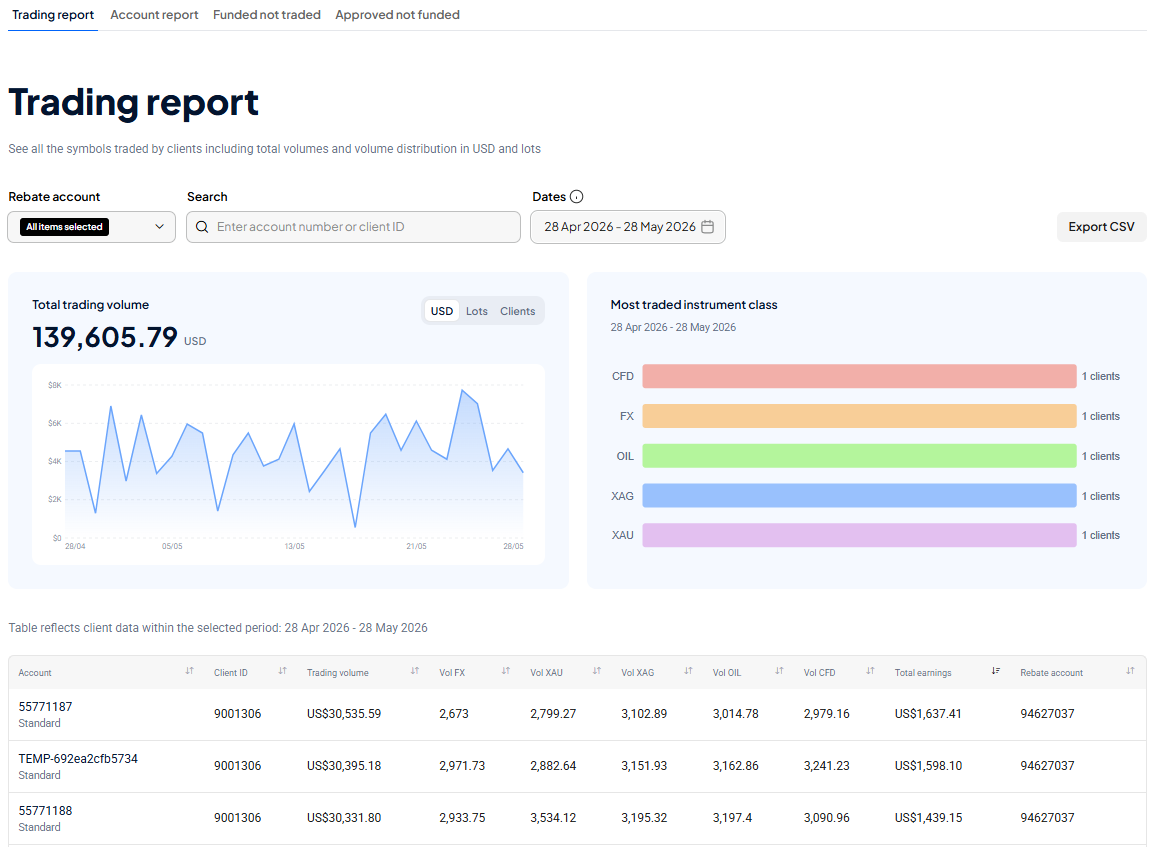
1. Trading report — trading volumes by instrument (FX, XAU, XAG, Oil, CFD) and total earnings per client account
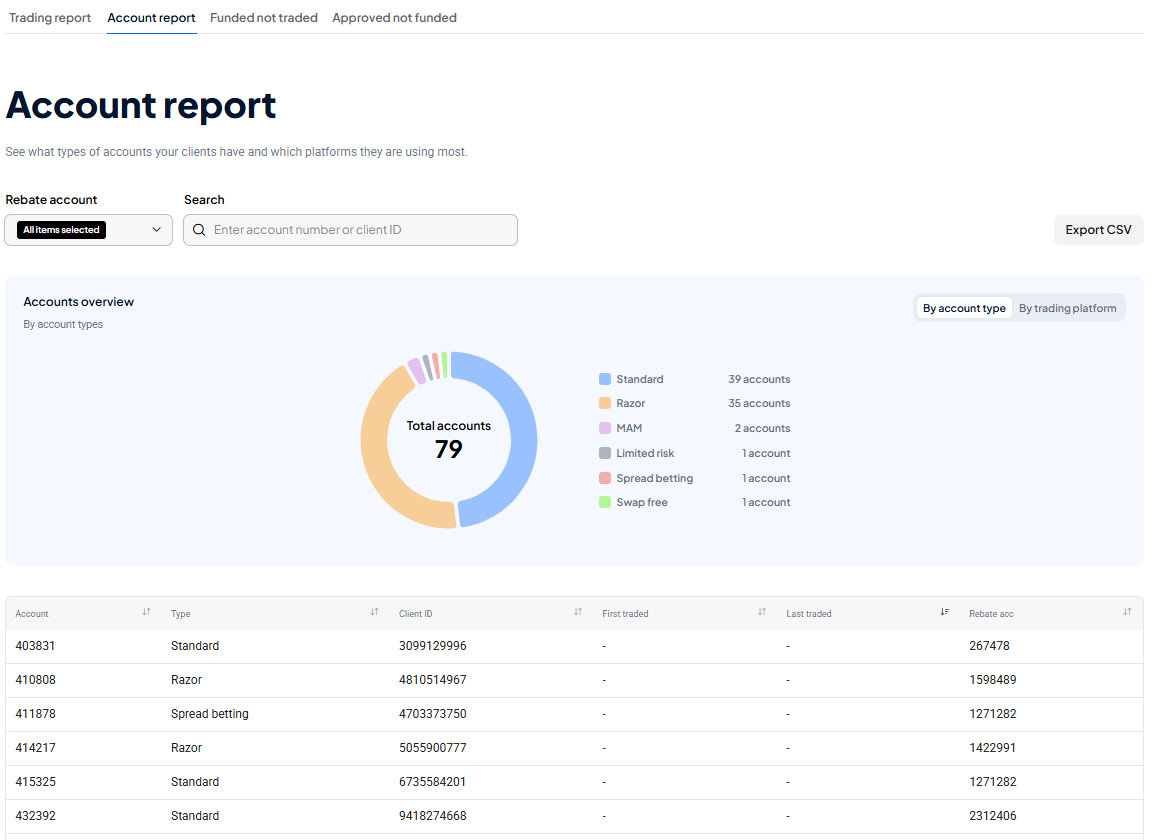
2. Account report — structured overview of all client accounts and their statuses
3. Funded not traded — clients who have deposited funds but not yet placed a trade
4. Approved not funded — clients whose accounts are approved but who have not yet made a deposit
Acc #, Account Type, Name, Email, VOL FX, VOL XAU, VOL XAG, VOL Oil, VOL CFD, Rebate Acc, Total Earnings (in USD). Sort by any column; filter by rebate account and date range; Search by account no., name or email.
This report lists clients who have funded their account but not yet traded. Following up with these clients to encourage them to start trading directly increases your rebates. The report can be filtered by rebate account and date range and exported as CSV.
Shows clients whose accounts are fully approved but who have not yet made their first deposit. Helps you identify the last group of clients who need a nudge to fund and begin trading.
Earnings and rebates
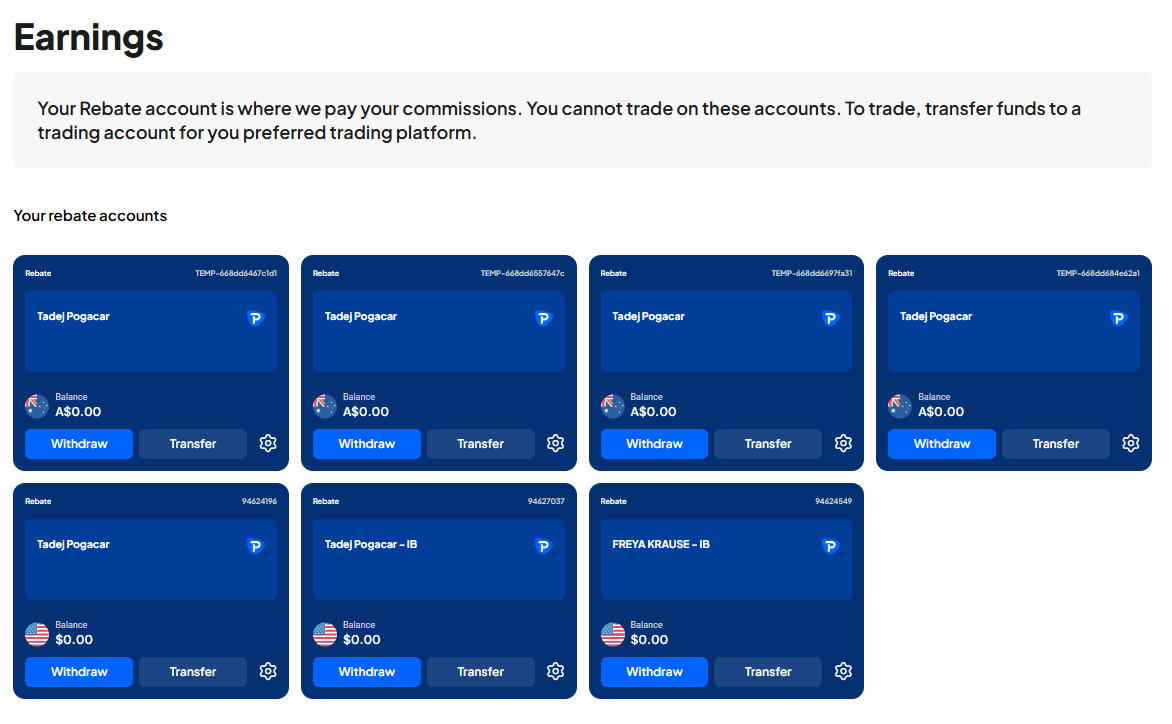
A rebate account is a dedicated Pepperstone account used exclusively to receive your partner commissions. You cannot trade on it. To use your earnings, withdraw them or transfer them to a trading account. You may have more than one rebate account if you manage multiple client groups.
From the Earnings page, each rebate account card has two action buttons:
1. Withdraw — opens the Pepperstone SCA withdrawal page in a new tab, pre-scoped to that rebate account
2. Transfer — opens the SCA transfer page to move funds to a trading account
A deactivated account shows a notice on the Earnings page. Contact Partners support to request reactivation. Your remaining active accounts continue to display normally.
Refresh the page. If no data appears after a minute, contact Partners support with your rebate account number and the approximate time the issue started.
Marketing tools – Referral links
Your referral link appears on the Overview page and the Marketing. You can use this referral link to invite clients and earn commissions. Click the copy icon to add it to your clipboard.
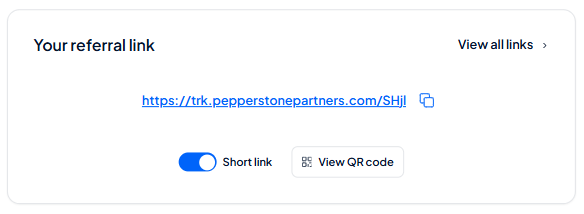
The widget on the Overview page gives you a quick view of your default referral link. From it you can toggle between the short URL and the full tracking URL, copy the link to clipboard, open the QR code for your default link, or click “View all links ›” to go to the full Referral Links page.
The Short link toggle is on by default and displays the compact short URL. Toggling it off switches the display to the full tracking URL. You can copy either version using the copy icon (⧉) next to it.
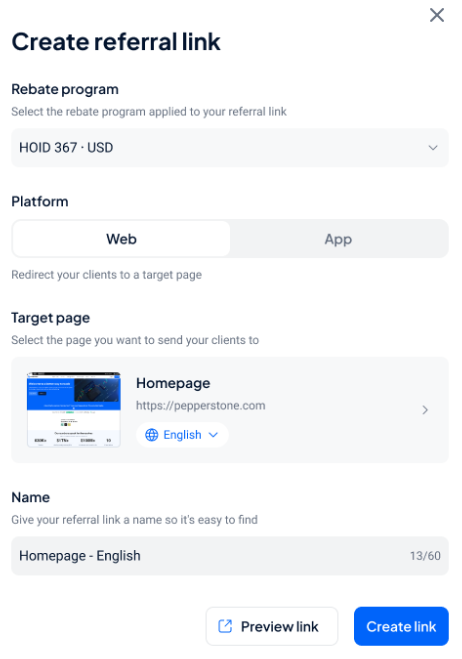
Link names must be unique and no longer than 60 characters. A default name is pre-filled using the format Target Page - Language. You can keep this or type your own. If the name already exists, the Create link button is blocked and an error message appears — simply choose a different name and try again.
Yes. If your account has multiple HOIDs, a Rebate program dropdown is shown in the Create referral link modal and you must select the relevant HOID. This dropdown is hidden for IBs with a single HOID.
Marketing tools – Marketing banners
Your banners is your central management hub for all marketing banners you have configured and saved. From here you can search, filter, sort, view, copy HTML code, rename, download, export to CSV, and create new banners.
HTML banners are animated or interactive formats. Image banners are static graphics. When creating a banner, if the campaign asset is available in both formats you can switch between them using the Type tabs. If only one format exists, the tabs are hidden.
If you have not yet created any banners, the page shows an empty state with a + Create new banner call-to-action. Click it to go directly to the Banner Library and start creating your first banner.
If no banners match your selected filters, the table shows an empty-search state. Click Clear to reset all filters and return to the full list.
Click ⋮ → Download as PNG on the relevant banner row. The banner image is downloaded to your device. This option is available from the Actions menu on both desktop and mobile and will be available only for Image banner type.
Account and settings
Click the language selector in the portal header. Supported languages: English, Simplified Chinese, Traditional Chinese, Arabic (RTL), Vietnamese, Thai, Indonesian, Spanish, and Portuguese. Your selection is saved for future logins.
Click "Launch personal trading" from the Overview page or profile menu. This opens your Pepperstone SCA in a new tab. The link is authenticated — no second login required.
Open the profile menu and select "Leave feedback". Your comments go directly to the Pepperstone Partners product team.
Login and security
The Partners Portal shares authentication with pepperstone.com and the Pepperstone SCA. If you are already logged in on either platform, visiting the portal takes you straight in without a second login. SSO also works in reverse — navigating to the SCA from the portal preserves your portal session.
The portal logs you out after a period of inactivity for your security. A "Still browsing?" modal appears before expiry — click it to extend your session. If you miss it, log back in to continue.
Click "Forgot password?" on the login screen and enter your registered email. A reset link is sent to your inbox. If it doesn't arrive, check your spam folder.
Social login users (e.g. Google) manage passwords through their provider — the portal password reset flow does not apply to social accounts.
Pepperstone maintains dedicated China-specific domains that rotate periodically. If your usual URL is not connecting, contact Partners support for the current active China domain address.
Partners in Vietnam, Indonesia, and Saudi Arabia access the portal via partners.pepperstone.me rather than the standard domain. All features are identical across both URLs.
Troubleshooting
Try these steps in order:
1. Refresh the page
2. Check your internet connection
3. If in China, confirm you are using the correct China domain
4. Wait two to three minutes and try again
If the error persists for more than 15 minutes, contact Partners support with your account number and the approximate start time.
The portal uses skeleton loading indicators while data is fetched — typically a few seconds. If loading takes more than 30 seconds, refresh the page. Contact Partners support if the issue persists.
Clear your browser cookies and cache. In Chrome: Settings → Privacy and security → Clear browsing data. Select "Cookies" and "Cached images", click Clear data, then restart the browser.
Refresh the Marketing page. If it recurs, select "Leave feedback" from the profile menu to report it.
Getting started
To access the Partners Portal you need a Pepperstone account. You can sign up in two ways from the login page:
- Email and password — enter your email, choose a secure password, and complete the CAPTCHA verification. A verification email is sent to confirm your account before you can log in.
- Social profile (e.g. Google) — sign in via your Google account. If you register this way you must always log in using Google. Your password is managed through your social provider.
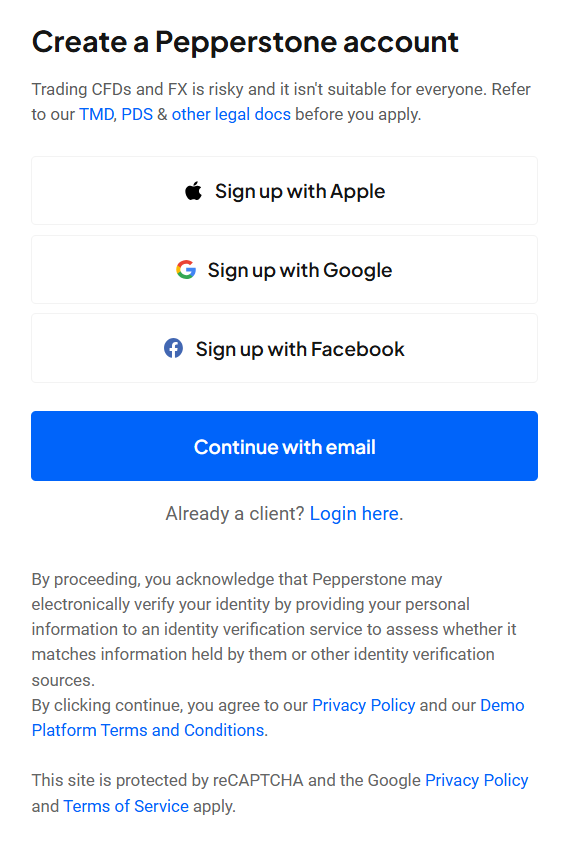
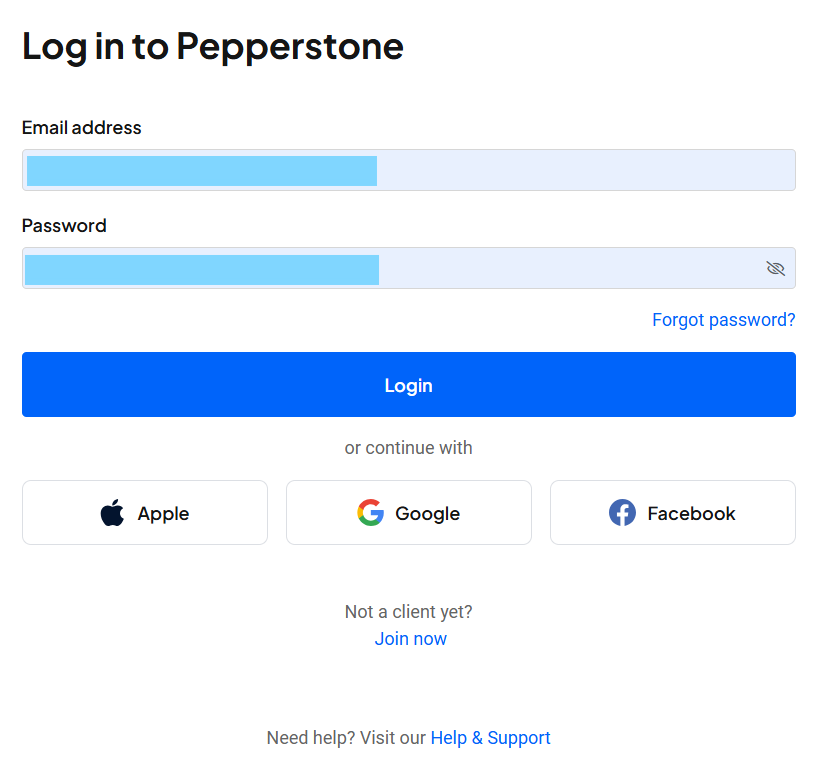
Visit partners.pepperstone.com and enter your credentials. If you are already logged in to pepperstone.com or the Pepperstone SCA, single sign-on (SSO) will bring you straight into the portal without a second login. On your first login the portal detects your geographic location and sets the default language accordingly.
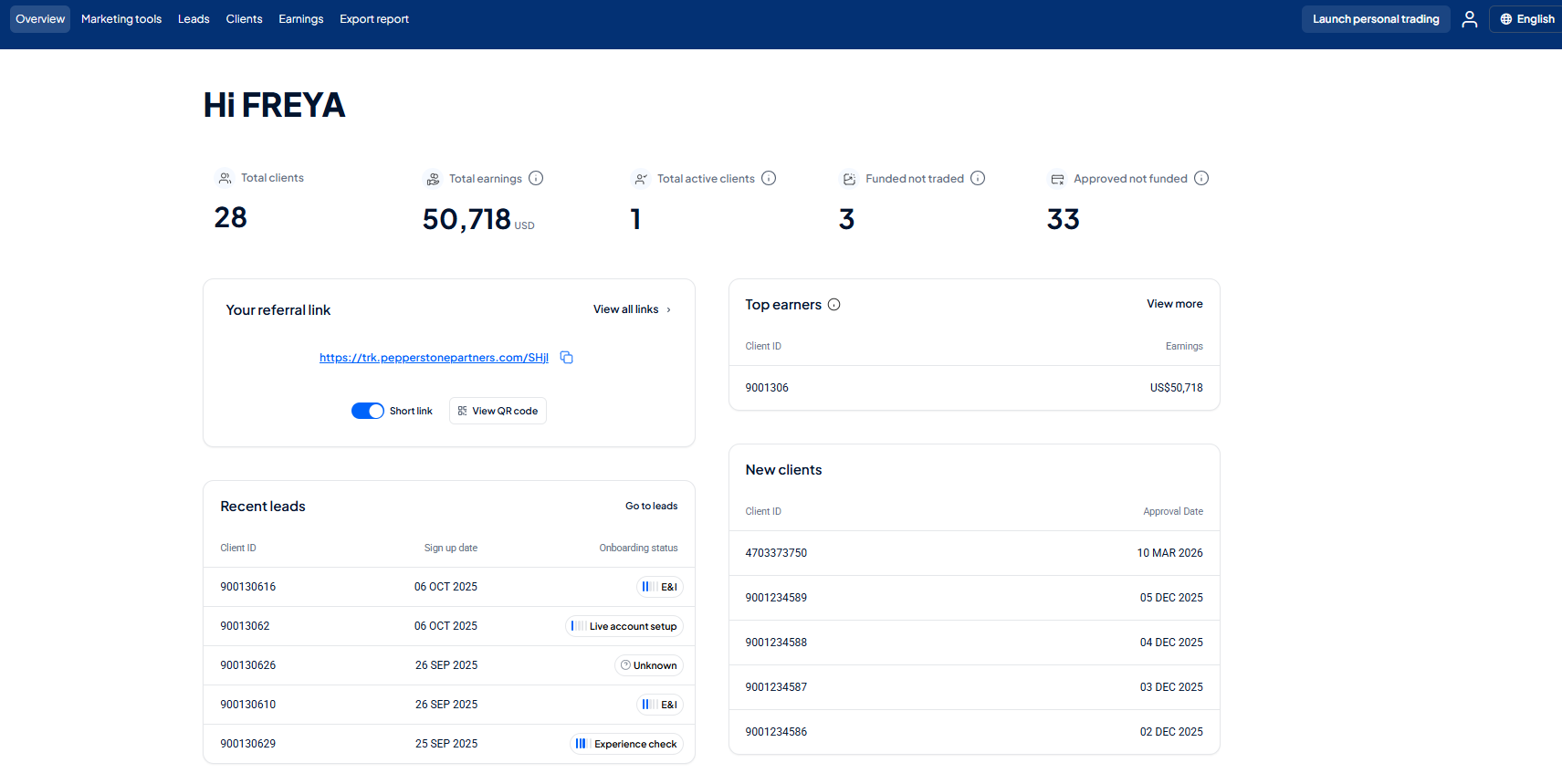
The Overview page is the portal home screen. Its content changes based on your application progress:
On desktop and tablet, the main tabs — Overview, Leads, Clients, Earnings, Marketing — appear in the portal header. Clicking the Pepperstone Partners logo always returns you to the Overview page.
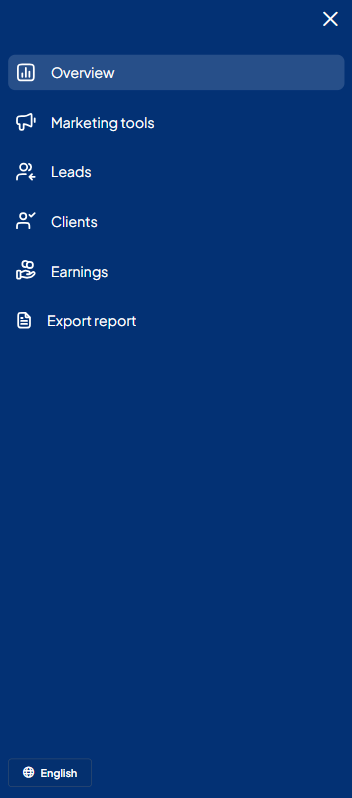
On mobile, tap the hamburger menu (☰) in the top-right corner to open the navigation drawer

Partner programs
Pepperstone offers three partner programs. The triage questionnaire will guide you to the most suitable one based on your goals and region.
1. Introducing Broker (IB) — you earn rebates every time a referred client trades. Rebates are credited to a dedicated rebate account in real time. Suited to partners with an active network of traders.
2. Affiliate — you earn a commission based on the performance of your referrals. Suited to digital marketers with websites, social channels, or content platforms.
3. MAM (Multi-Account Manager) — you manage trading on behalf of multiple clients from a single master account. Requires a qualification form and approval from the Partners Operations team.
After logging in, if you are from one of these countries, you are guided through four steps:
1. Program selection — choose IB, Affiliate, MAM.
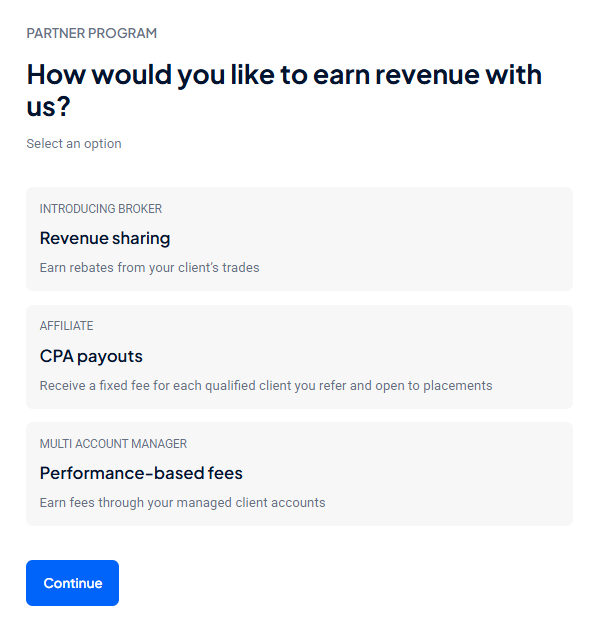
2. Country selection — select the Partner type, country of residence, Nationality, Country of operation.
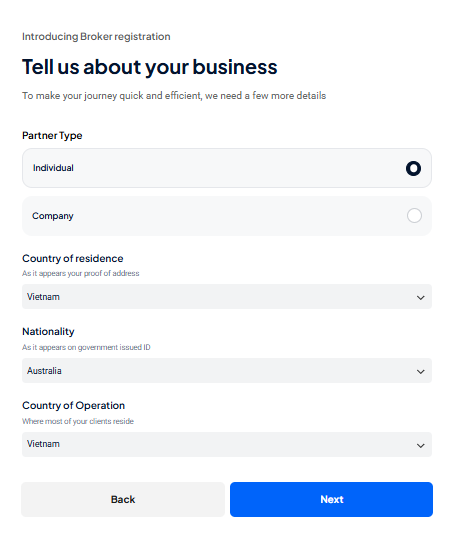
3. IB Registration form — Enter First name, last name, date of birth, mobile number, Preferred rebate currency, confirm the acknowledgements.
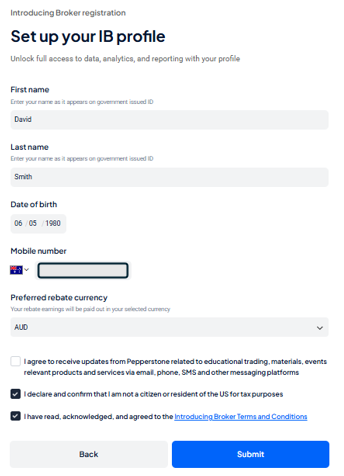
4. Profile creation — see your profile being created
Post successful profile creation, you will be navigated to Partners portal overview page. You are now ready to start referring your clients.
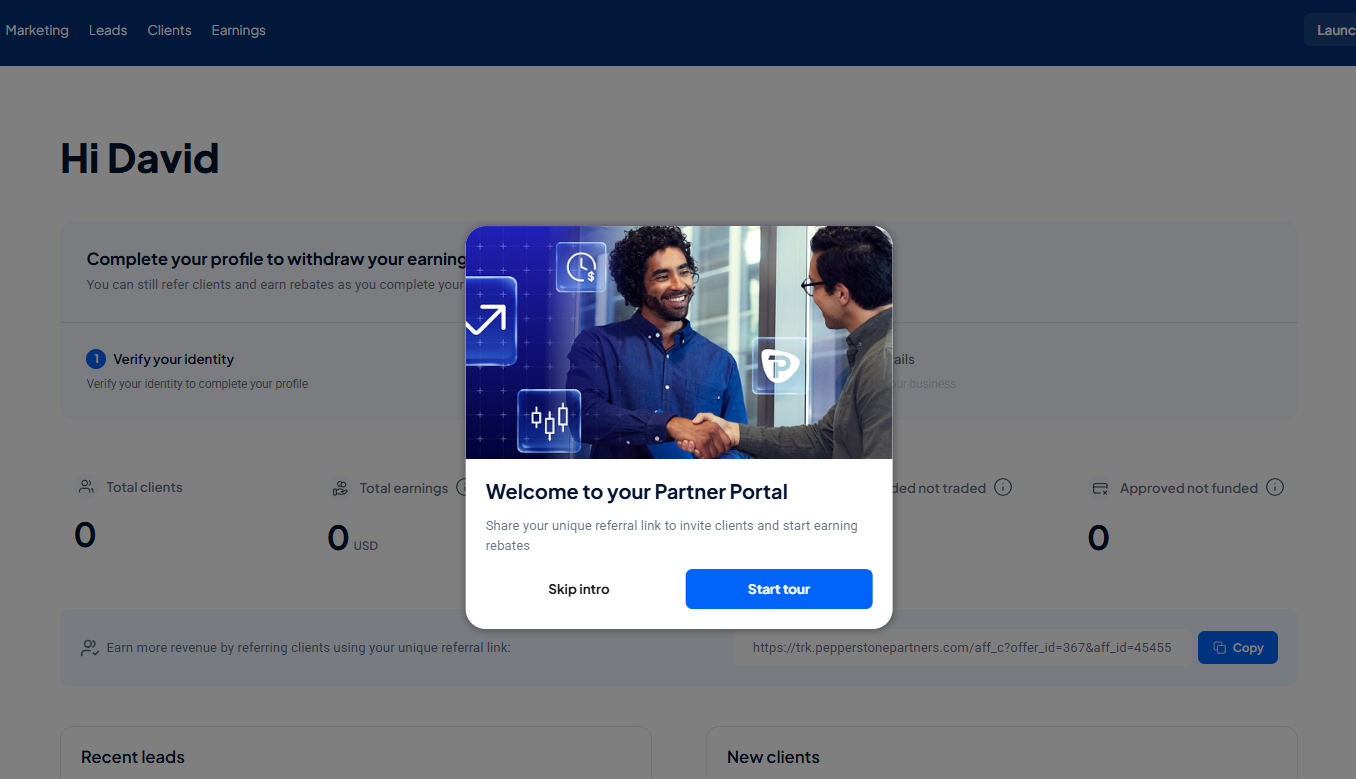
While you are ready to start using the Partners portal to refer your clients, track your leads, view and analyse client reports, you are required to complete KYC and submit your business details to withdraw your earnings.
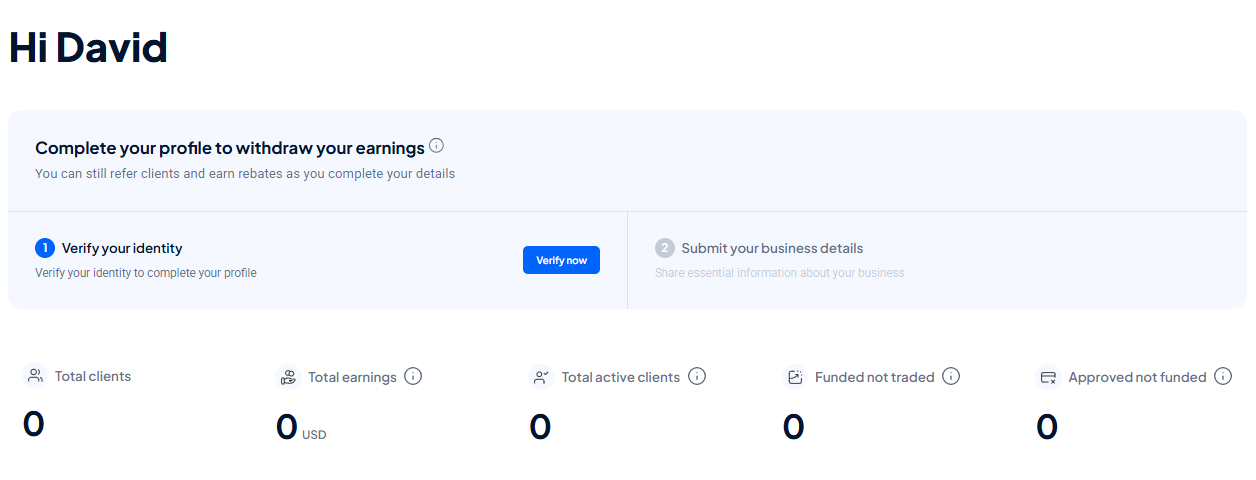
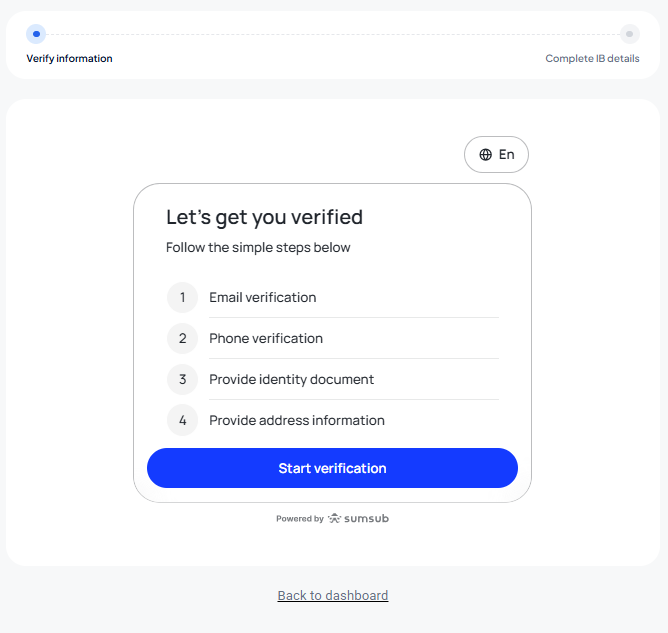
1. Click on “Verify now” button to launch KYC and complete all the steps
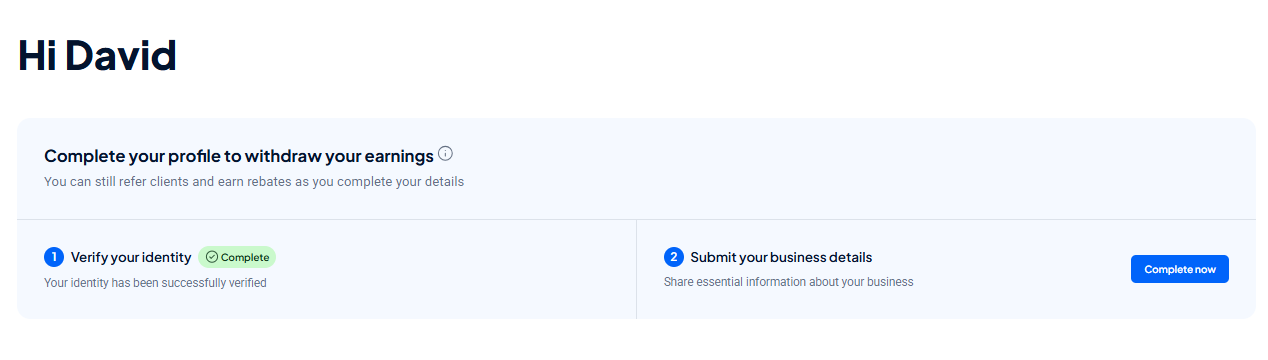
2. Upon completion of KYC the Overview page will be in the below state
Follow the below steps to complete the business details
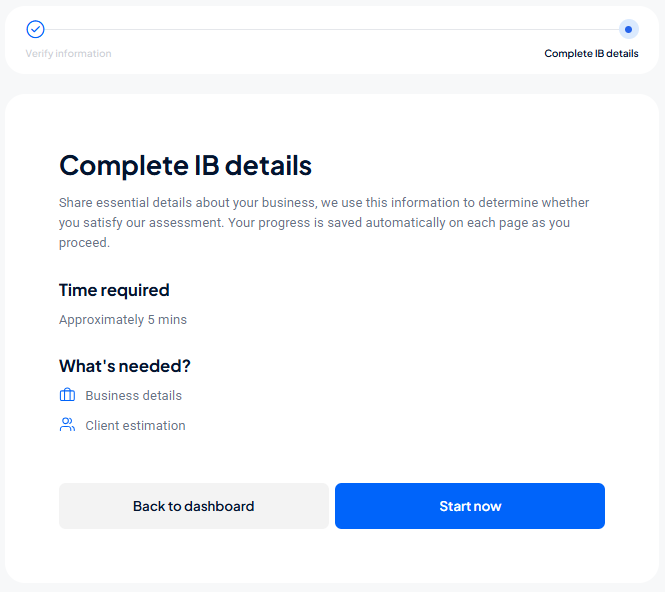
1. Enter the details about your business
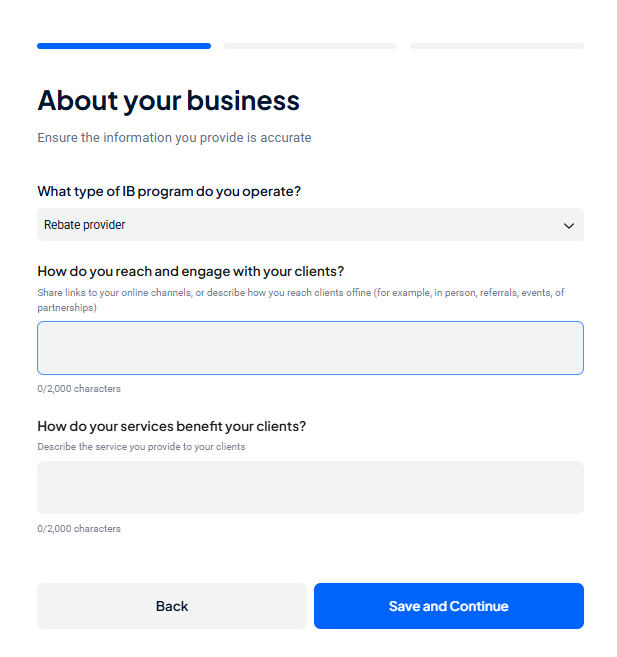
2. Enter your client details
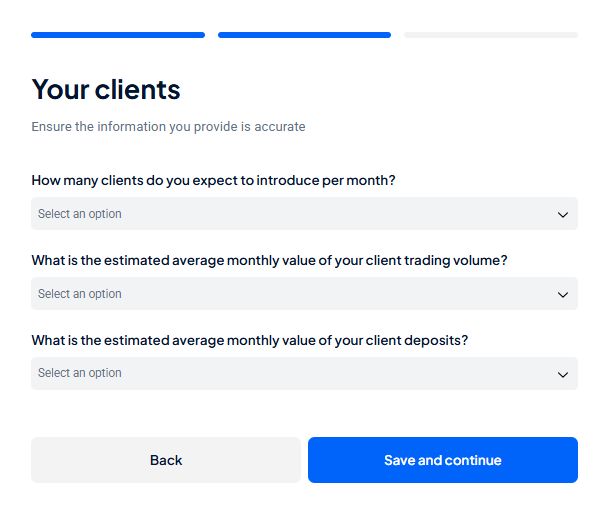
3. Review and acknowledge the details and submit
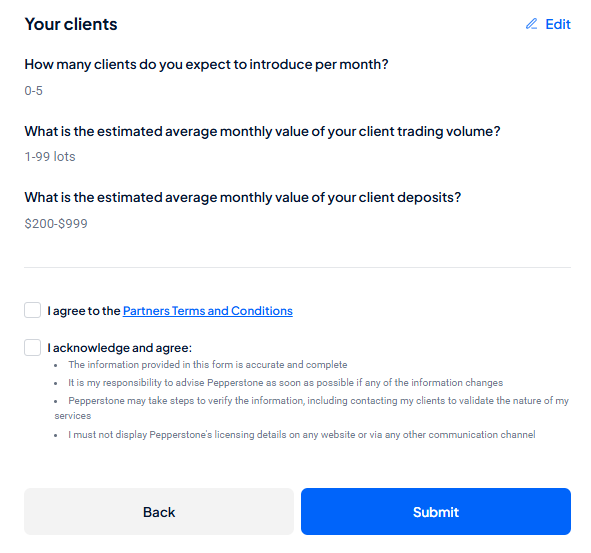
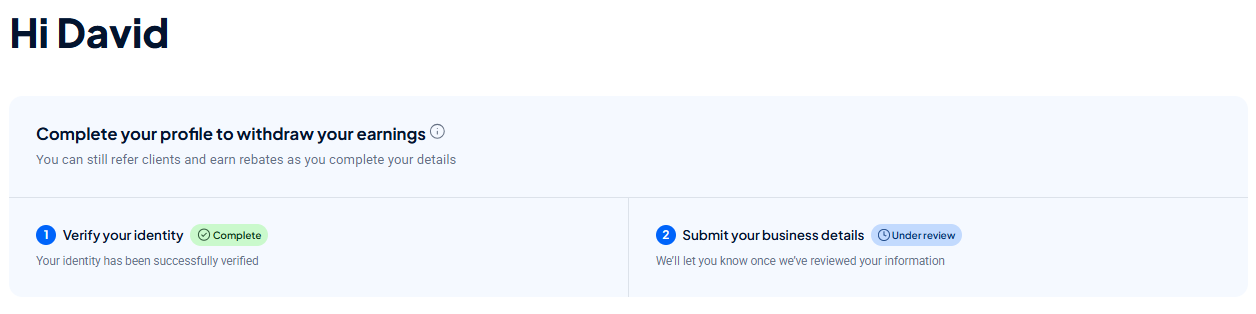
Once the business details are submitted, the Overview page will be the below state. No further action is required from your end. Just wait until the Ops team approves the details. Once the approval is done, you will have full access to Partners portal and can withdraw your earnings
Leads
The Leads tab shows everyone who has registered with Pepperstone using your referral link. Each row includes:
- Client ID- Country- Sign up date- Country- Onboarding status — Live account setup, E&I, Experience check, Identification verification, Under review, ApprovedYou can learn more about the client onboarding by clicking on the “Learn more about client onboarding” link available on the page
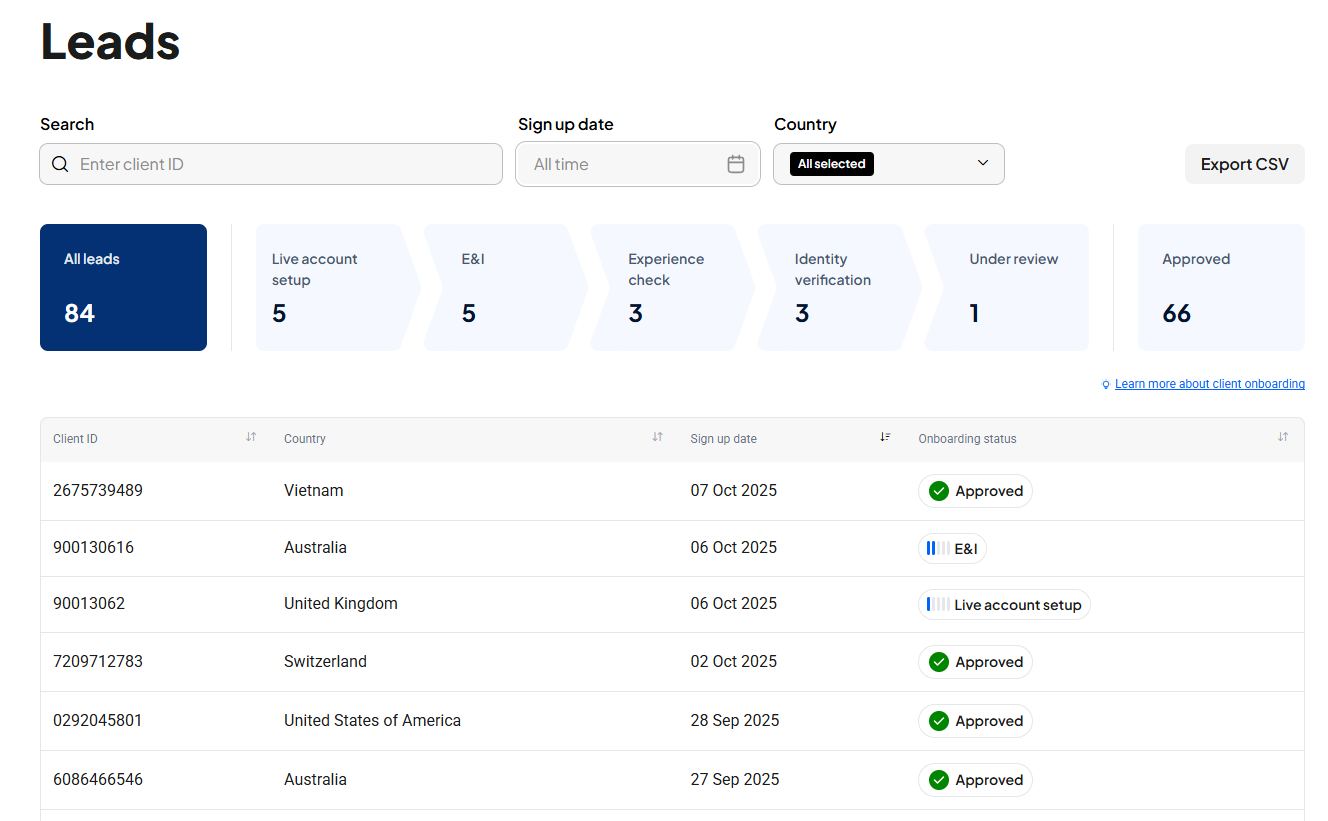
Use the search bar above the table to filter by account number, name, or email. A clear button (✕) appears once you start typing. Use the date range selector to filter leads by their registration date.
Click any column heading to sort by that column — click again to reverse. A small arrow indicator appears in the active column. On desktop and tablet, drag the border between column headings to resize them.
Click Export CSV at the top right. The file is named automatically using the selected date range (e.g. leads_2024-01-01_2024-03-31.csv). All active search and date filters are applied to the export.
- "No records found" — filters don't match any leads. Clear the search or widen the date range.
- "No data" — you have no leads yet. Share your referral link to start generating leads.
Clients
The Clients tab shows all of your leads who have been approved and are active trading clients. There are 3 client reports available to track your client activities.
Shows trading volumes broken down by instrument class for each client account, alongside total earnings for the selected period. Columns:
- Acc #, Account Type, Name, Email
- VOL FX, VOL XAU (gold), VOL XAG (silver), VOL Oil, VOL CFD
- Rebate Acc, Currency, Total Earnings
You can sort by any column. If the report fails to load, a contextual error message is shown — refresh the page and try again.
Provides a structured overview of all client accounts linked to your partner code — account numbers, types, statuses, and key metrics — without per-instrument volume detail.
Name and email fields in the Account report are subject to PII configuration. If these fields appear hidden or masked, contact your Pepperstone Partners account manager to review your access settings.
Lists clients who have deposited funds but not yet placed a trade. A funded but inactive client earns you no rebates — this report gives you a targeted list for re-engagement outreach. Columns: account number, account type, name, email, funded date, balance, rebate account, currency. Filter by rebate account and funded date range.
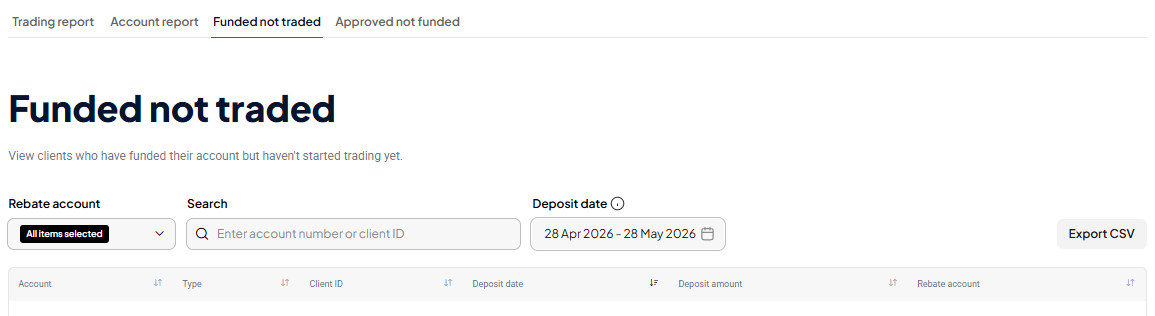
Run this report weekly to catch newly funded clients before they go cold. Pair with your marketing materials for a timely follow-up.
Shows clients whose accounts are fully approved but who have not yet made their first deposit. Highlights the gap between account approval and funded activation — helping you identify clients who need a nudge to fund and begin trading. Columns: account number, account type, name, email, approval date, rebate account, currency.
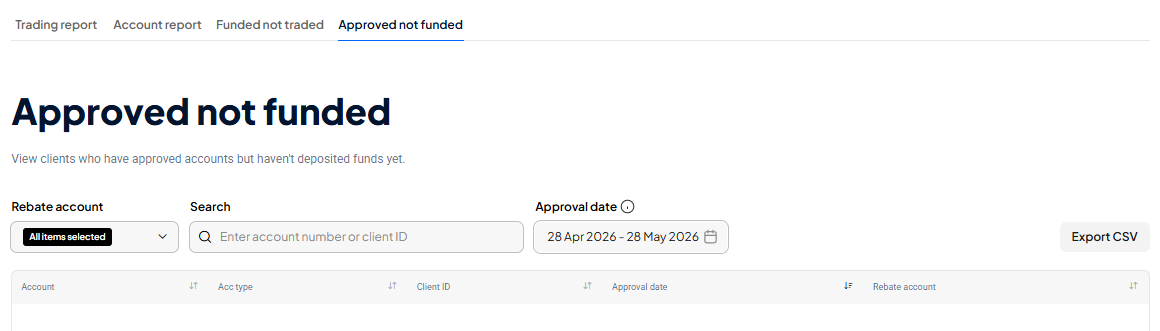
Both Funded not traded and Approved not funded are subject to the same PII configuration as the Account report.
Earnings and rebates
A rebate account is a dedicated Pepperstone trading account used exclusively to receive your partner commissions. Key points:
- You cannot trade on a rebate account — it exists only for receiving commissions
- To use your earnings, you must withdraw them to your bank or transfer them to a trading account
- You may have more than one rebate account if you manage multiple client groups or programs
- Each rebate account has its own currency, shown with the corresponding country flag on the card
The Earnings tab is visible once your partner account is fully approved (State 3). Each rebate account is shown as a card displaying: account label and nickname, currency and country flag, and current balance. Use the rebate account dropdown to filter to a specific account.
Withdrawing and transferring earnings
Each rebate account card has three action buttons:
- Withdraw — opens the Pepperstone SCA withdrawal page in a new tab, pre-scoped to that rebate account
- Transfer— opens the SCA transfer page to move funds to one of your trading accounts
- Settings cog — opens the account nickname and settings page in SCA
The Partners Portal does not process transactions directly. All money movement is handled through the Pepperstone SCA.
Deactivated rebate accounts
If a rebate account is archived, deleted, or disabled due to inactivity, a notice appears at the top of the Earnings page. Your remaining active accounts continue to display normally below the notice. Contact Partners support to request reactivation.
"Your rebate account has been deactivated due to inactivity. You can no longer earn commission rebates on this account. Please contact support to request this account to be reactivated."
The Total Earnings column on the Clients tab shows how much each client has generated for you during the selected period. The Trading report provides a full instrument-by-instrument breakdown of each client's trading volumes alongside their total earnings contribution.
Marketing tools
Once your profile is approved, your unique referral link is displayed on both the Overview page and the Marketing page. Click the copy icon to add it to your clipboard. When a prospective client registers using your link, they appear automatically in your Leads table and begin generating rebates once they trade.
Partners in China with FSC-approved IB status are issued a dedicated China referral link, separate from the standard link.
| Element | What it does |
|---|---|
| Short link toggle | On by default — shows the compact short URL. Toggle off to switch to the full tracking URL. |
| Copy icon (⧉) | Click the link or the copy icon to copy to clipboard. A "Link copied" confirmation appears. |
| View QR code | Opens the QR code for your default referral link. |
| View all links | Takes you directly to the full Referral Links page. |
Note: The widget shows your default referral link only. To see and manage all links, go to Marketing Tools → Referral Links.
1. Click Marketing Tools in the top nav bar.
2. The Referral links page shows a table of all your links.
| Column | Description |
|---|---|
| Link | Link name (bold) and short URL below it. Includes a copy icon (⧉) and a More (⋮) menu. |
| Platform | Web or App. |
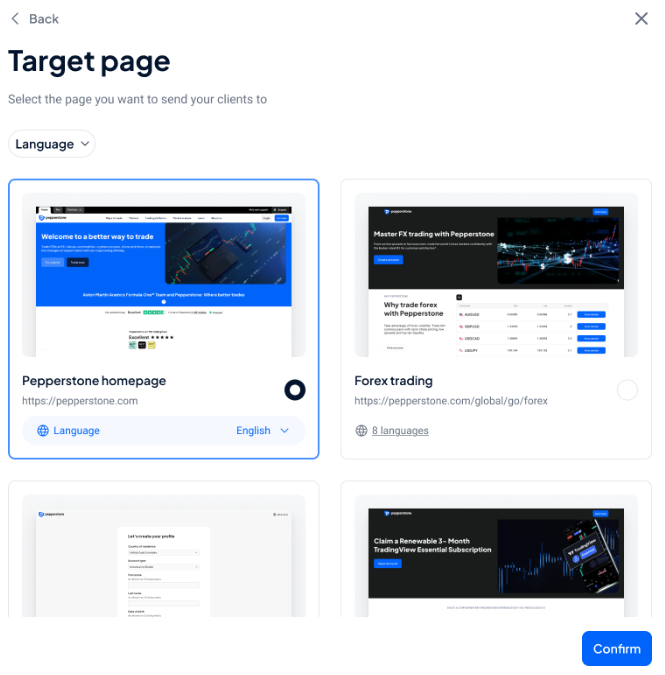
| Target page | Landing page name and language the link points to. |
| Rebate program | Associated HOID. Shown for IBs with multiple HOIDs. |
| Created | Creation date. Hover to see full date, time and timezone. |
| Last click | Date of most recent click. "No clicks yet" if the link hasn't been used. |
Tip Click any column header to sort the table ascending or descending
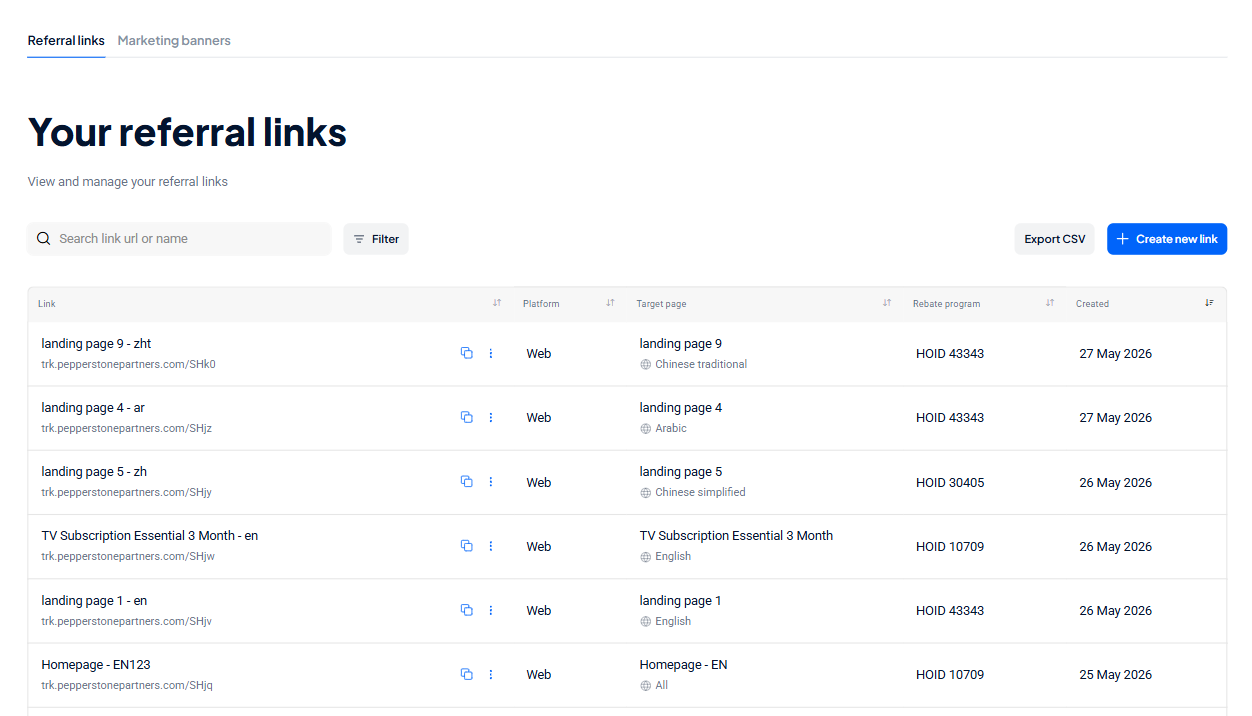
Referral links in Marketing Tools
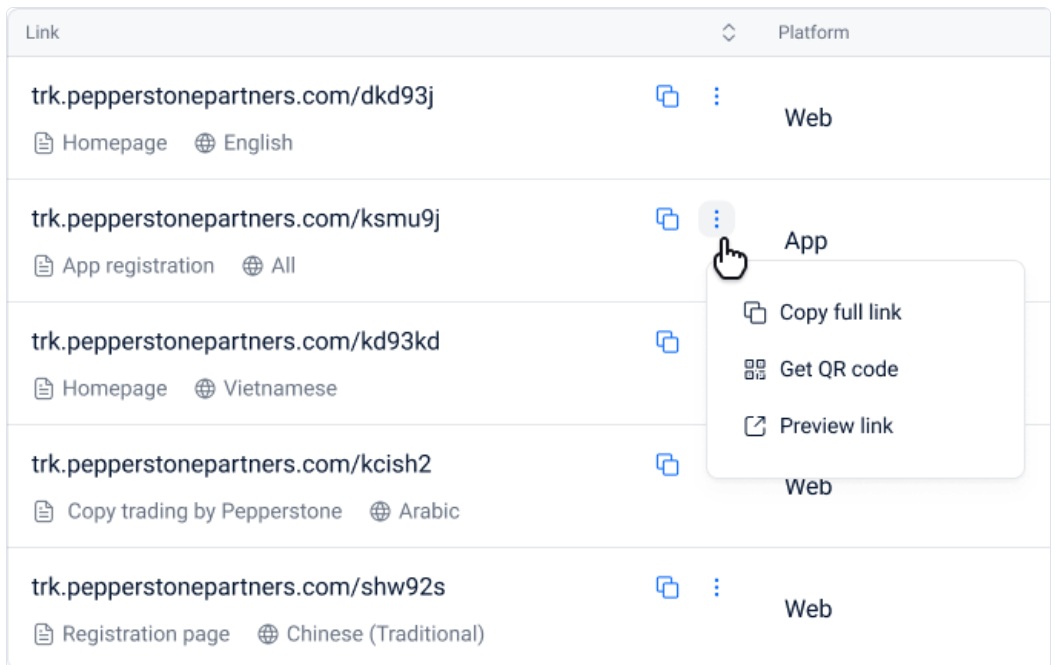
Copy a link
1. Click the copy icon (⧉) next to any link's URL to copy the short link instantly. A "Link copied" tooltip confirms it.
2. To copy the full link instead: click ⋮ → Copy full link.
Get a QR code
1. Click ⋮ → Get QR code.
2. A QR code is generated from the short link. Download or copy it for printed materials, campaigns, or events.
Preview a landing page
1. Click ⋮ → Preview link.
2. The target landing page opens in a new browser tab — exactly as your referred clients will see it.
Renaming a referral link
1. Find the link in the table. Click ⋮ → Rename.
2. The Rename referral link modal opens. Edit the name (max 60 characters).
3. Click Save to apply. Click Cancel to discard.
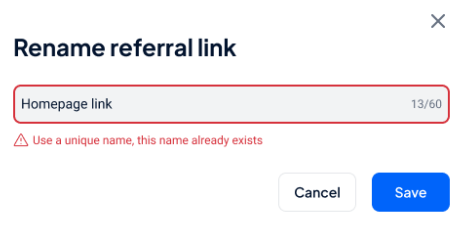
Unique names required: If the name already exists, Save is blocked and an error in red appears below the field. Choose a different name.
Click + Create new link on the Referral Links page (or the Create links CTA on the Overview Onboarding widget).
1. The Create referral link modal opens.
2. Rebate program (multi-HOID IBs only) — select the HOID from the dropdown. Hidden for IBs with a single HOID.
3. Platform — choose Web (default) or App.
4. Target page — click the selector to open the Target page library.
The Marketing banners page lists all marketing banners you have configured and saved.
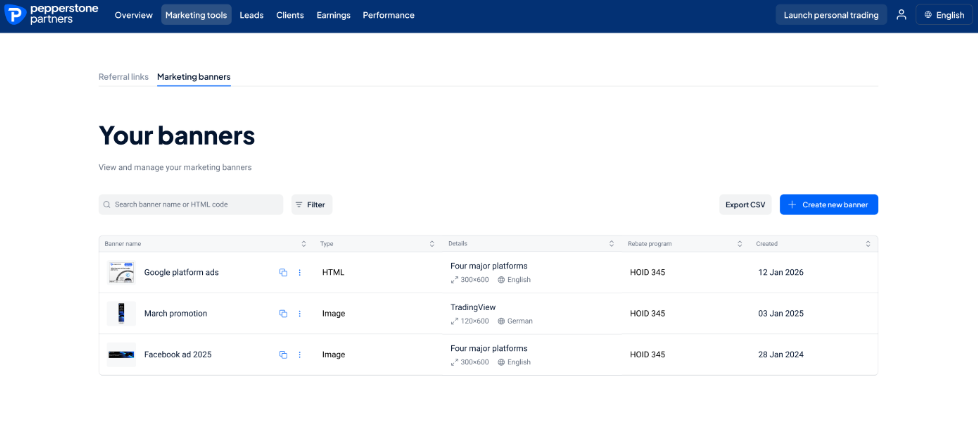
Page controls
| Control | What it does |
|---|---|
| Search box | Real-time search by banner name or HTML code. |
| Filter | Opens the Filter modal to narrow by Banner, Language, Banner size, Type, and Rebate program. |
| Export CSV | Downloads all currently visible banners as a spreadsheet. |
| + Create new banner | Opens the Banner Library so you can browse and configure a new banner. |
| Copy icon (⧉) | Copies the HTML code for that row's banner instantly. |
| View Performance icon | Navigates the user to Performance page to view the performance of the banner |
| Actions menu (⋮) | Per-row menu: View banner, Copy HTML code, Rename, Download as PNG. |
No banners yet? If you have not created any banners, the page displays an empty state with a “+ Create new banner” call-to-action. Click it to go straight to the Banner Library.
Viewing your banners — table columns & sorting
| Column | Description |
|---|---|
| Banner name | The name you gave the banner (bold), with its thumbnail. Includes a copy icon (⧉) and the Actions menu (⋮). |
| Type | Banner format — HTML (animated/interactive) or Image (static graphic). |
| Details | Campaign name with the banner size and language displayed beneath it. |
| Rebate program | The HOID the banner is associated with. Shown for IBs with multiple HOIDs. |
| Created | Creation date. Hover to see the full date, time, and timezone. |
| Last clicked | Date of most recent click. "No clicks yet" if the link hasn't been used. |
Tip — Sorting - Click any column header to sort the table ascending. Click again to sort descending. A directional arrow appears next to the active sort column.
Creating new banners
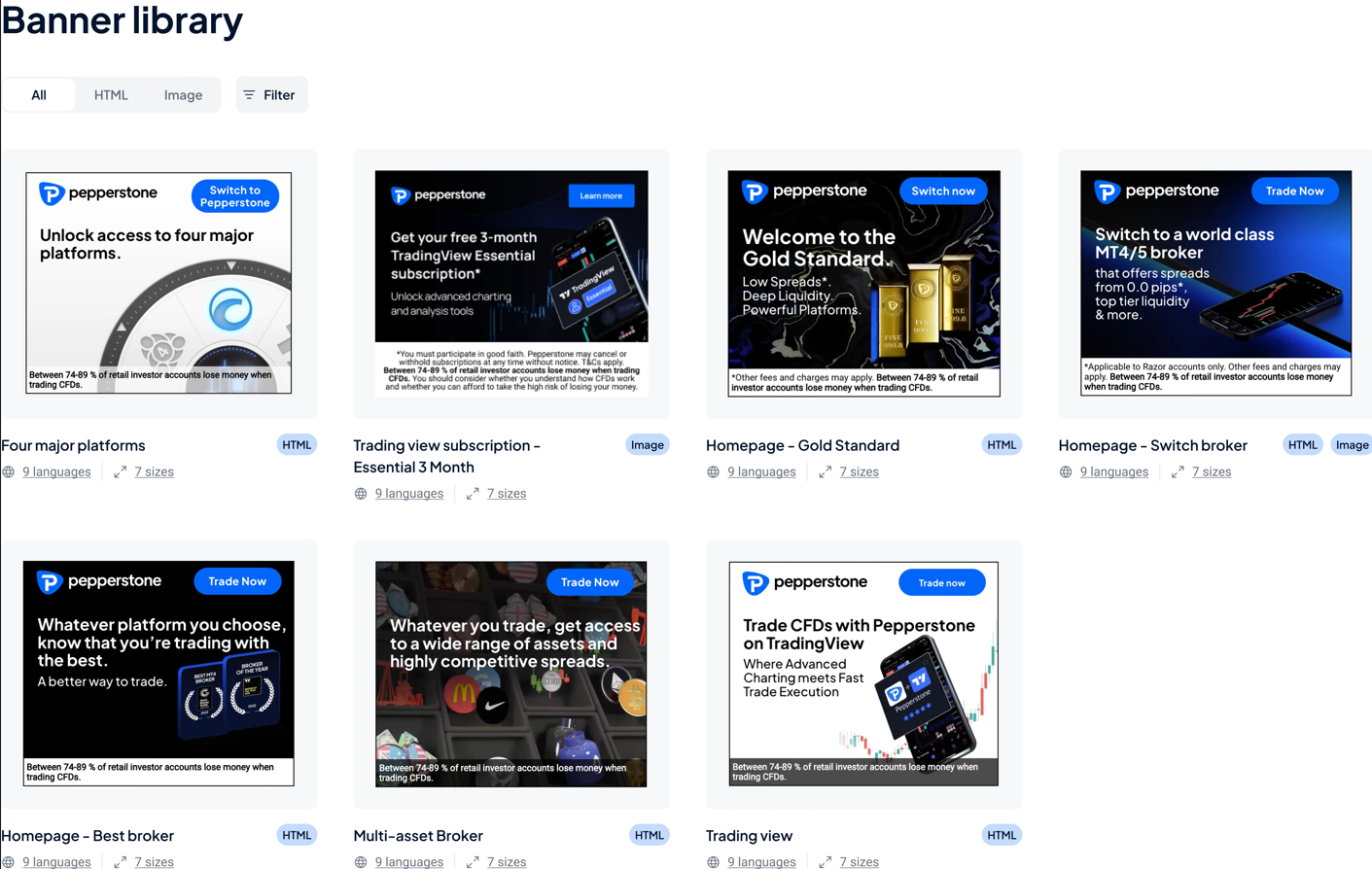
- Click + Create new banner on the Your banners page to open the Banner Library — Pepperstone's full catalogue of pre-approved campaign assets.
- The Banner Library loads, showing all available assets as thumbnail cards, each labelled with campaign name, type tag, language count, and size count.
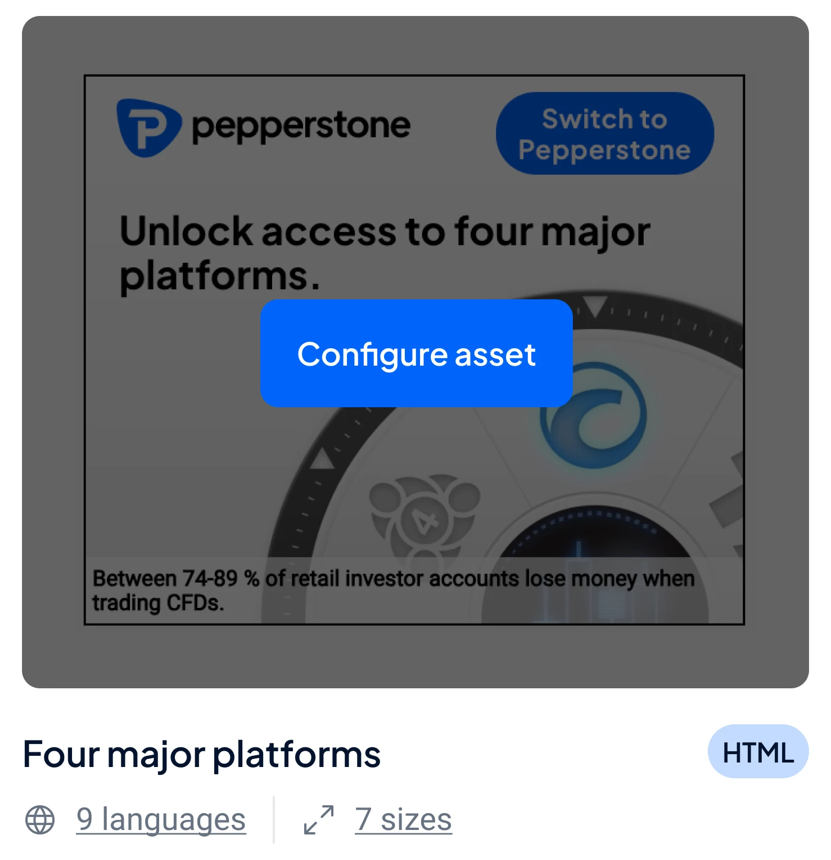
- Hover over a banner thumbnail — a Configure asset button appears. Hover the languages or sizes links to preview the full lists. Click Configure asset to proceed.
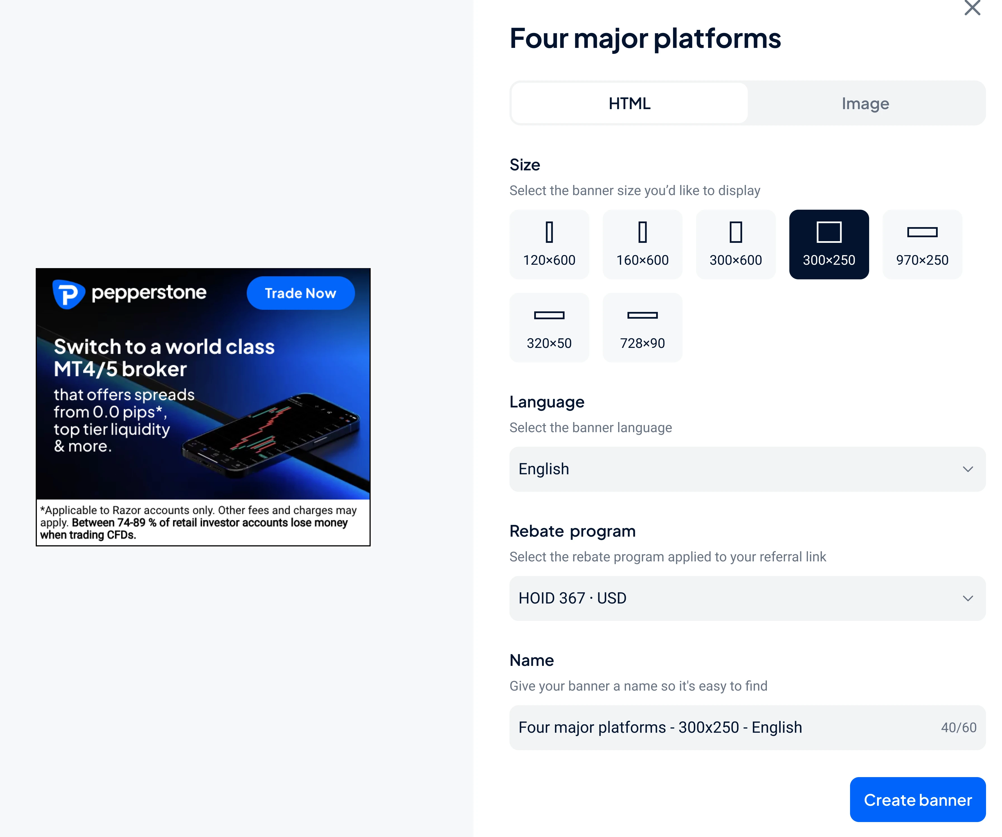
- After clicking Configure asset, the Configure asset panel opens over the Banner Library. Set your options and click Create banner.
- The configuration panel opens on the right, with a live banner preview on the left. The panel shows the campaign name at the top.
- Type — if the asset is available in both HTML and Image formats, switch between them using the tabs. If only one format exists, the tabs are hidden.
- Size — click a size button (e.g. 300×250, 728×90). The banner preview updates to reflect the chosen dimensions.
- Language — select the language version from the dropdown.
- Rebate program — select the HOID to associate with this banner. Hidden for single-HOID IBs. If the selected HOID is a master/sub-IB arrangement an informational message will appear.
- Name — a default name is pre-filled as Campaign - Size - Language. Keep it or type your own (max 60 characters, must be unique).
- Click Create banner. The system saves the configuration and returns you to the Your banners page with a success toast notification.
Error states on creation
| Situation | What you'll see | What to do |
|---|---|---|
| Duplicate name | Red error message below the Name field: "Use a unique name, this name already exists." | Enter a different name and click Create banner again. |
| Identical banner already exists | A warning message appears noting the same configuration already exists. The existing banner is highlighted in the library with a blinking effect. | Close the panel and use the existing banner, or choose a different size or language. |
| General creation error | A red error toast appears at the top of the screen. | Try again. If the issue persists, contact Pepperstone support. |
Performance
1. Login at Partners.pepperstone.com.
2. Select Performance from the top navigation bar (desktop) or the hamburger menu (mobile).
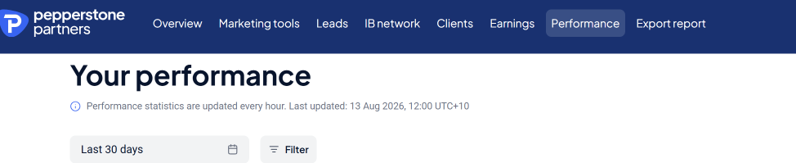
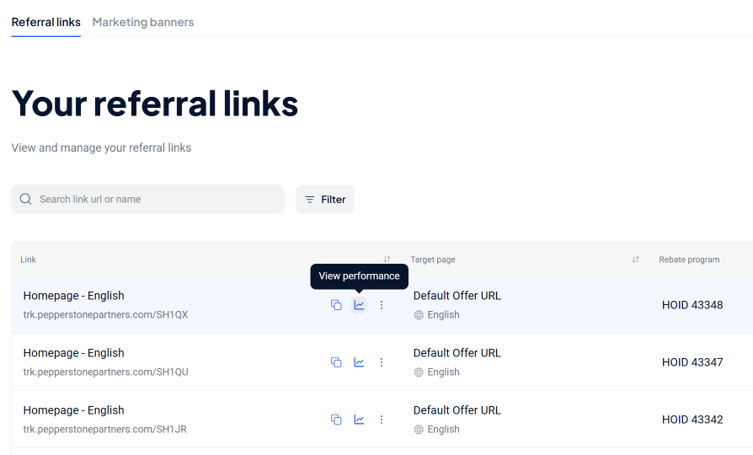
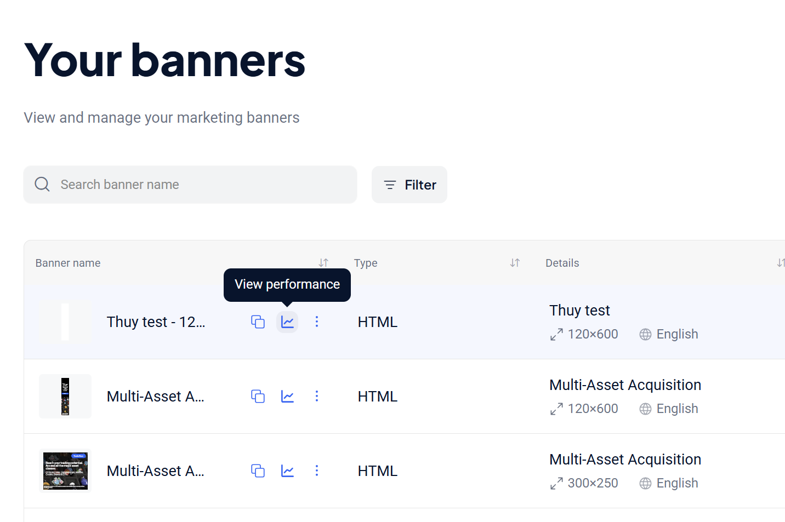
You can also jump straight into a filtered view of the report from the Referral links or Marketing banners pages — every link and banner row has a link through to its own performance data. You'll land on the Performance statistics page, with a subtitle showing when the data was last refreshed.
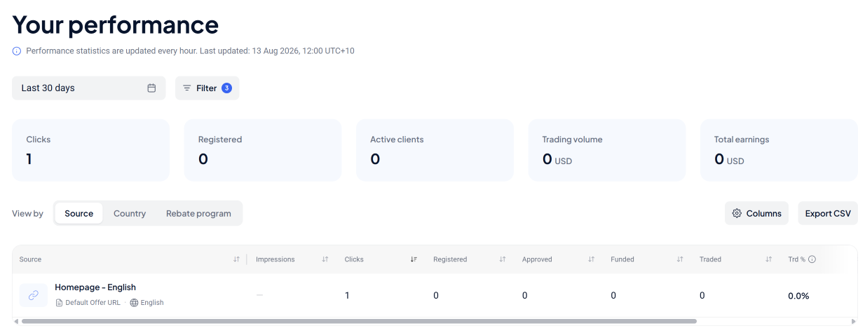
At the top of the page, five summary cards give you the big picture for your selected date range:
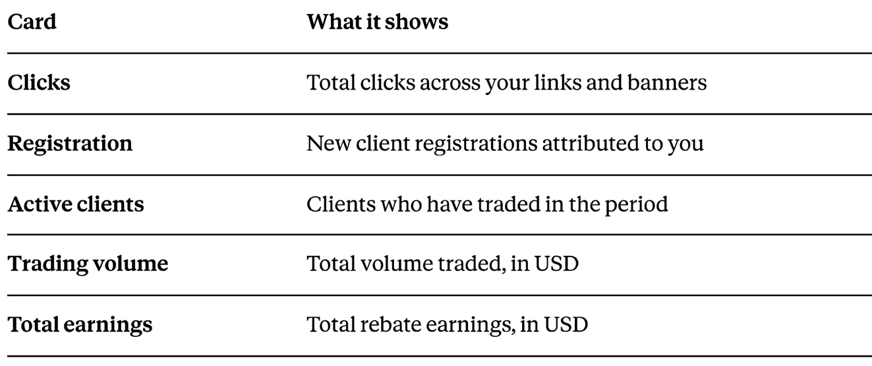
Large numbers are shown in shorthand (e.g. 19.2M USD, 190,928 USD) so you can scan them quickly. On mobile, these five cards sit in a single row you can swipe through horizontally.
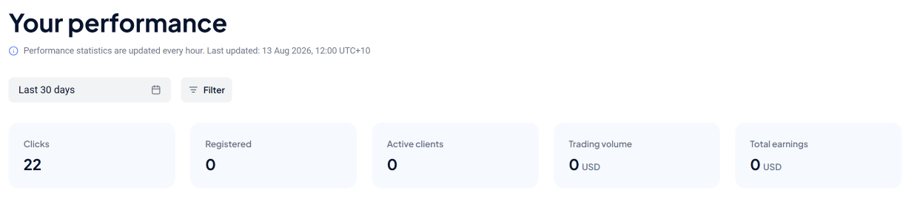
By default, the report shows the last 30 days. 1. 2. Click the date-range selector in the filter bar. Choose from Last 7 days, Last 30 days, Last 90 days, or set a custom range. Everything on the page — the summary cards, the table, and any CSV export — updates to reflect your selection.
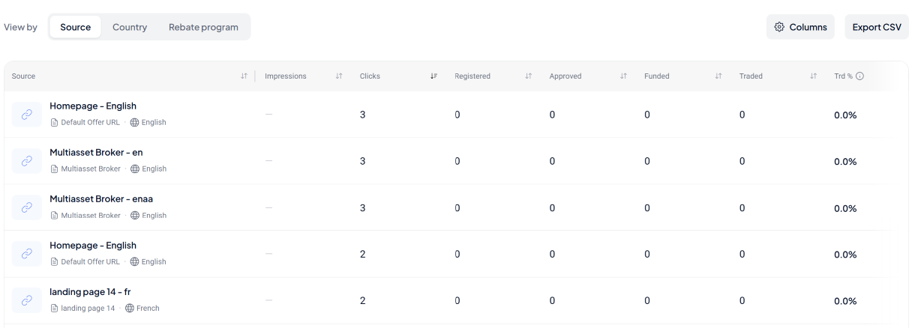
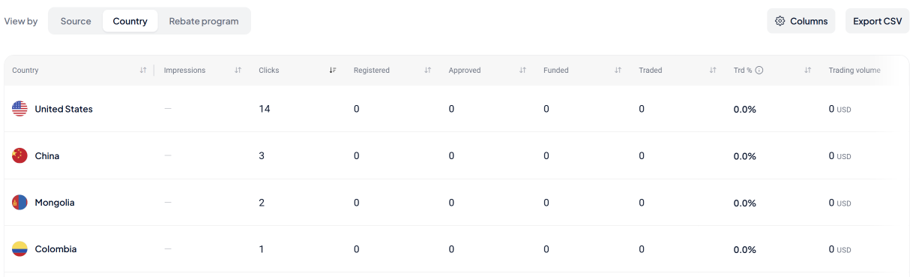
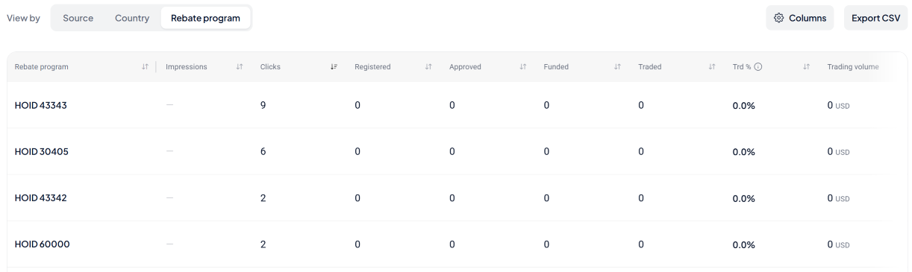
Just below the summary cards, use the "View insights by" tabs to change how the table below is grouped: e e e Source (default) — breaks results down by individual link or banner Country — breaks results down by client country Rebate program — breaks results down by the rebate plan applied Only one view is active at a time. Switching tabs keeps your date range and filters, but resets sorting to that view's default.
1. Click Filter in the toolbar.
2. Choose a Source type — Links, Banners, or both:
a. Selecting Links reveals an additional Landing page filter.
b. Selecting Banners reveals an additional Banner group filter.
c. Selecting both shows both additional filters.
3. Optionally narrow further by Rebate program or Country.
4. Click Apply.
The table and summary cards update immediately. If any filters are active, the Filter button shows a small badge with the count applied. On mobile, filtering works the same way inside a bottom sheet — tap the filter icon, make your selections, then tap Apply. Tap Reset to clear your choices without leaving the sheet.
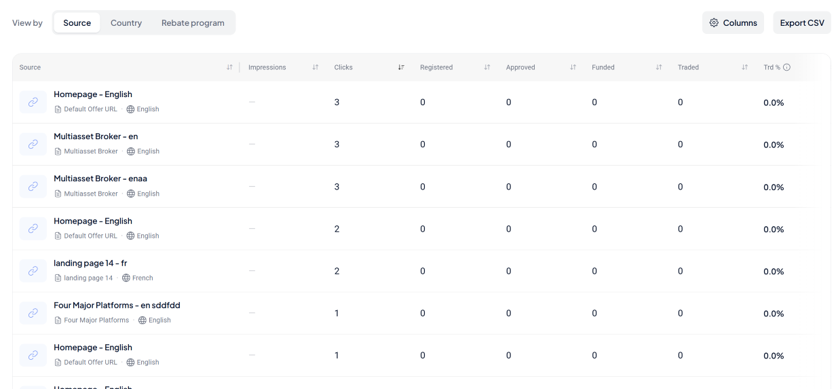
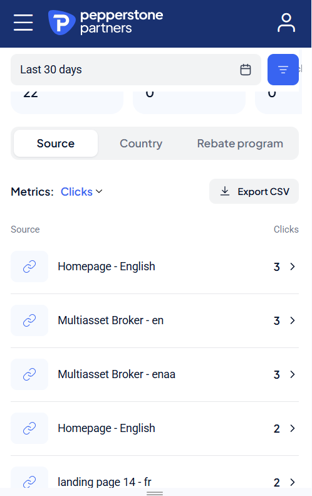
Each row in the table represents one source (a link or banner), one country, or one rebate program, depending on your selected view. For the Source view specifically, each row shows:
• A link icon (blue circle) for URL-based referral links, or a thumbnail preview for marketing banners (reflecting the banner's actual dimensions, e.g. 728x90)
• The source name in bold, with tags underneath for page type (e.g. Homepage, Pricing) and language
• Metrics across the full funnel: Impressions (banners only — links show a dash), Clicks, Registration, Approved, Funded, Traded, and Trd % (your click-to-traded conversion rate, with a tooltip explaining the calculation)
Columns with a sort arrow (4) can be clicked to re-sort the table. By default, the table sorts by Clicks, highest first — your sort choice carries over when you switch between Source, Country, and Rebate program views. You'll only ever see data attributed to your own tracking links and banners — never another partner's data.
- Click Columns (© icon) above the table.
- Toggle any additional metric on or off — including conversion-rate columns like Reg %, App %, and Fnd %, which are hidden by default.
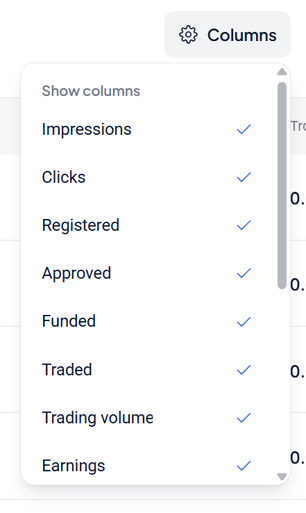
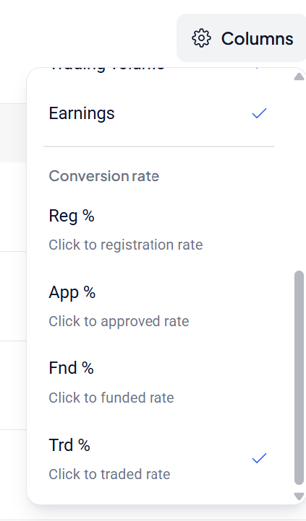
Your column choices carry over when you switch between Source/Country/Rebate program views, but reset back to the default set each time you leave and return to the Performance report.
Click Export CSV icon above the table. A CSV file downloads immediately, named (performance_statistics_YYYY-MM-DD. csv}.
The export reflects whichever view (Source/Country/Rebate program), date range, and filters are currently active — so what you see is exactly what you get. On mobile, tap the Export csv pill next to the “Sort” control — it downloads straight away with all columns included, no extra confirmation step.
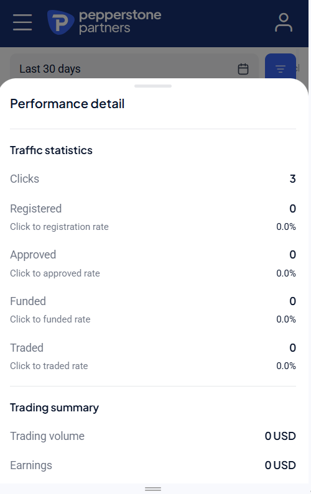
On mobile, tapping any row opens a full detail screen for that source, showing:
- The full funnel (Clicks > Registration > Approved > Funded > Traded)
- Conversion rates at each funnel stage
- Trading volume and earnings for that source specifically
Swipe down or use your device's back gesture to return to the list — you'll land back exactly where you left off, with your tab, filters, and sort intact.
Account and settings
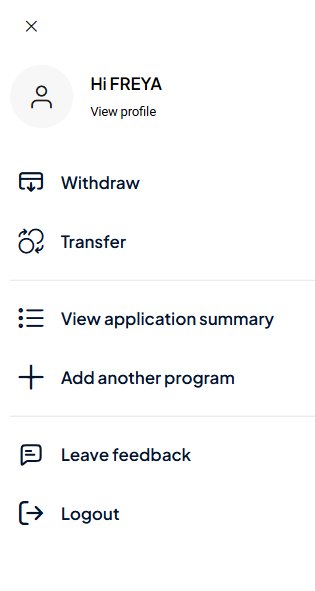
Click your avatar or initials in the top-right corner of the portal to open the profile menu. Options shown depend on your account state:
- If Profile has not been submitted and approved yet: Complete application, language selector, launch personal trading, log out
- If Profile is approved: Add another program, triage summary, language selector, launch personal trading, leave feedback, log out
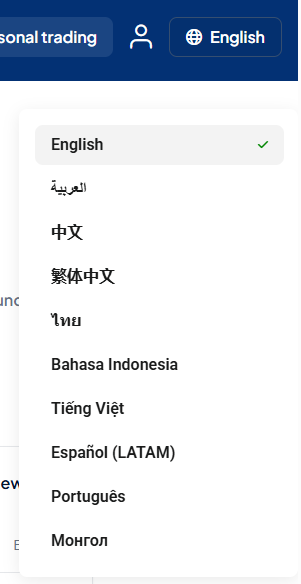
Click the language selector in the portal header (or inside the hamburger menu on mobile). The portal supports nine languages:
- English
- Simplified Chinese (中文简体)
- Traditional Chinese (中文繁體)
- Arabic — العربية (full right-to-left layout)
- Vietnamese (Tiếng Việt)
- Thai (ภาษาไทย)
- Indonesian (Bahasa Indonesia)
- Spanish (Español)
- Portuguese (Português)
Your selection is saved and applied on all future logins. On first login the default is set from your geographic location. If no match is found, English is used.
Click "Launch personal trading" from the Overview page or the profile menu. This opens your Pepperstone MyAccount (SCA) page in a new tab. The link is authenticated so you won't be asked to log in again, and your portal session stays open in the original tab.
Select "Leave feedback" from the profile menu. A feedback form opens where you can share comments, report issues, or suggest improvements. Your feedback goes directly to the Pepperstone Partners product team.
A cookie consent popup appears on your first login. You can accept all cookies or manage your preferences individually by category. To revisit your cookie settings, find the cookie preferences option in the portal footer.
Login and security
The Partners Portal shares authentication with pepperstone.com and the Pepperstone Client Area (SCA). If you are already logged in on either platform, visiting the Partners Portal takes you straight in without a second login prompt. SSO also works in reverse — navigating to the SCA from the portal preserves your portal session in the original tab.
The portal automatically ends your session after a period of inactivity. Before expiry, a "Still browsing?" modal appears — click it to extend your session by another full period. If you do not interact within one minute, you are logged out and redirected to the inactivity logout page. Log back in to continue.
On the login screen, click "Forgot password?" and enter your registered email address. A password reset link is sent to your inbox. If the email does not arrive within a few minutes, check your spam folder or contact Partners support.
Social login users (e.g. Google) manage their passwords through their social provider — the portal password reset flow does not apply to social accounts.
Pepperstone maintains dedicated China-specific domains that rotate periodically. If your usual portal URL is not connecting from China, contact Partners support for the current active China domain. Partners in China with FSC-approved IB status are issued a dedicated China referral link on their Overview page.
Partners in Vietnam, Indonesia, and Saudi Arabia access the portal via partners.pepperstone.me rather than the standard domain. All portal features, content, and functionality are identical across both URLs.
Troubleshooting
This error usually indicates a temporary issue fetching data. Try these steps in order:
1. Refresh the page
2. Check your internet connection is stable
3. If in China, confirm you are using the correct China-specific domain
4. Wait two to three minutes and try again
If the error persists for more than 15 minutes, contact Partners support with your account number and the approximate start time of the issue.
The portal uses skeleton loading indicators while data is fetched in the background — typically a few seconds. If a page takes more than 30 seconds to load, refresh it. Consistent slowness may indicate a network issue on your end or a temporary upstream problem. Contact Partners support if it persists.
Clear your browser cookies and cache. In Chrome: Settings → Privacy and security → Clear browsing data. Select "Cookies and other site data" and "Cached images and files", then click Clear data. Restart the browser before trying again.
Refresh the Marketing page. If it recurs, select "Leave feedback" from the profile menu to report it, including the name of the campaign affected.
A date picker display issue on Safari has been resolved in production. If you are still seeing issues, ensure your browser is fully up to date. Try switching to Chrome or Firefox, and contact Partners support with your browser version and a description of the problem.
If none of the above resolves your issue, contact the Pepperstone Partners support team. When you get in touch please include:
- Your partner account number or registered email
- A description of the issue and the steps you have already tried
- The approximate date and time the issue first occurred
- Your browser name and version, and the device you are using
List of countries
1. Albania
2. Algeria
3. Angola
4. Anguilla
5. Antigua and Barbuda
6. Argentina
7. Aruba
8. Azerbaijan
9. Bahamas
10. Bahrain
11. Bangladesh
12. Barbados
13. Benin
14. Bermuda
15. Bolivia
16. Bonaire, Sint Eustatius and Saba
17. Botswana
18. Brazil
19. British Virgin Islands
20. Brunei Darussalam
21. Burkina Faso
22. Burundi
23. Cabo Verde (Cape Verde)
24. Cambodia
25. Cayman Islands
26. Chile
27. China
28. Christmas Island
29. Colombia
30. Comoros
31. Cook Islands
32. Costa Rica
33. Curaçao
34. Djibouti
35. Dominica
36. Dominican Republic
37. Ecuador
38. Egypt
39. El Salvador
40. Equatorial Guinea
41. Eswatini (Prev/ Swaziland)
42. Ethiopia
43. Falkland Islands (Malvinas)
44. Fiji
45. Gabon
46. Gambia
47. Georgia
48. Ghana
49. Greenland
50. Grenada
51. Guatemala
52. Honduras
53. Hong Kong
54. India
55. Indonesia
56. Israel
57. Jamaica
58. Jordan
59. Kenya
60. Kiribati
61. Kosovo
62. Kuwait
63. Kyrgyzstan
64. Laos
65. Lesotho
66. Macao
67. Madagascar
68. Malawi
69. Malaysia
70. Maldives
71. Marshall Islands
72. Mauritania
73. Mauritius
74. Mexico
75. Micronesia (Federated States of)
76. Moldova (Republic of)
77. Mongolia
78. Montenegro
79. Montserrat
80. Morocco
81. Namibia
82. Nauru
83. Nepal
84. Niger
85. Nigeria
86. Niue
87. North Macedonia (the former Yugoslav Republic of)
88. Northern Mariana Islands
89. Oman
90. Pakistan
91. Palau
92. China
93. Papua New Guinea
94. Paraguay
95. Peru
96. Philippines
97. Pitcairn Islands
98. Qatar
99. Rwanda
100. Saint Helena, Ascension and Tristan da Cunha
101. Sao Tome and Principe
102. Saudi Arabia
103. Senegal
104. Seychelles
105. Sierra Leone
106. Singapore
107. Solomon Islands
108. South Africa
109. Sri Lanka
110. Taiwan, Province of China
111. Tanzania, United Republic of
112. Thailand
113. Timor-Leste
114. Togo
115. Tokelau
116. Tonga
117. Trinidad and Tobago
118. Tunisia
119. Turkey
120. Tuvalu
121. Uganda
122. Uruguay
123. Uzbekistan
124. Vietnam
125. Zambia